
Configure the search layer and filters
Adapt the presentation without altering the catalog data.
Reviewed October 23, 2026 · Customer guide
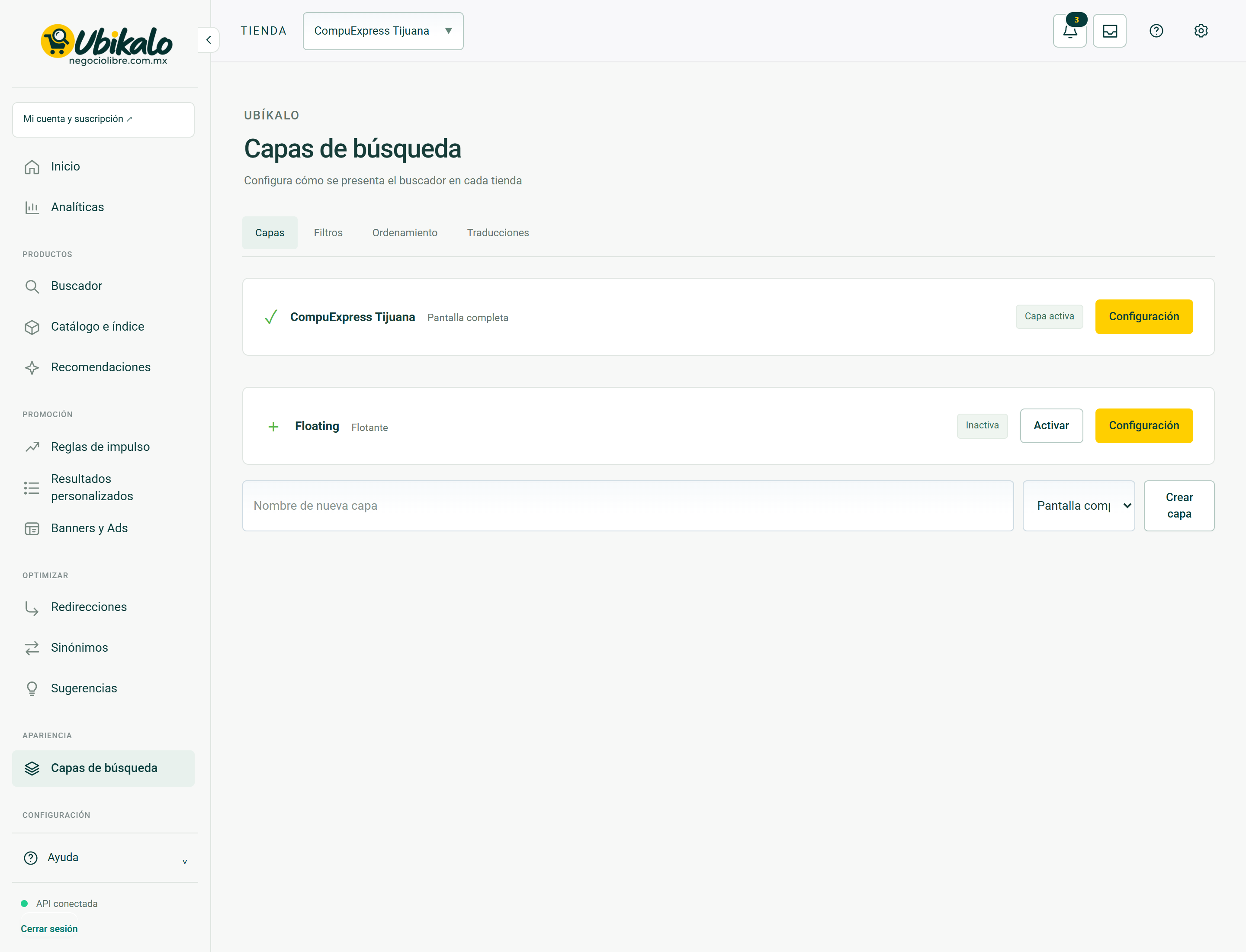
Read about this screen’s controls →
Steps
- Open the layer settings and select the layer you want to edit.
- Check type, status, filters and available translations; maintain a planned active layer.
- In Personalization, adjust titles, color, typography, columns or allowed avatar.
- Save and reload the store to try desktop, mobile and keyboard.
Useful filters
Activate filters backed by data: real brands, consistent categories and valid prices. Selections within the same facet can function as alternatives; different facets are combined. Do not publish empty or duplicate groups without reviewing the catalog.
Images and conflicts
The panel can process an image before sending it as a validated PNG. If another session saved first, it reloads on a conflict instead of overwriting. Changing avatar should not change prices, fees or favicon.
Visual Compatibility
Check the theme of the trade and that two search engines are not inserted. An administrative preview is not a substitute for a test on the actual storefront.
How to verify it worked
Filters, closure, cards and links are usable on mobile and with keyboard, without horizontal overflow.