Set up UBÍKALO
Installation and validation walkthrough for a real catalog.
Reviewed October 23, 2026 · Customer guide
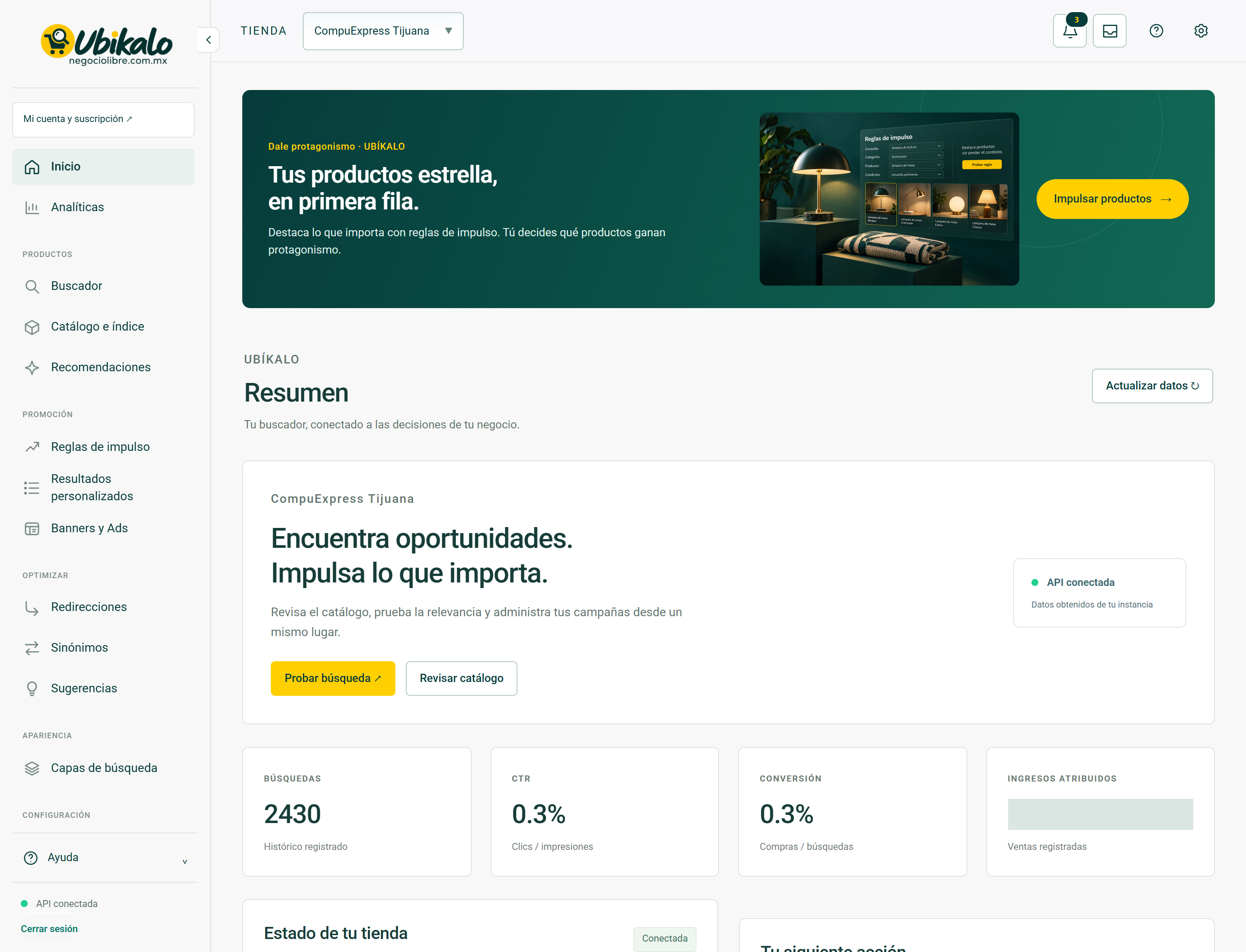
Read about this screen’s controls →
Steps
- Log in to your account and create or select the store for the correct domain.
- Connect the catalog using WooCommerce, an available connector, or a server integration.
- Check the index: products, prices, availability and images.
- Publish the search and test layer from the store, first on desktop and then on mobile.
- Review the first queries and correct data or rules with evidence.
What is each area
The panel manages the search engine; the original store retains its products and sales. The index is a copy of data to search, not the master inventory. Each store must have its own context and integration.
Before publishing
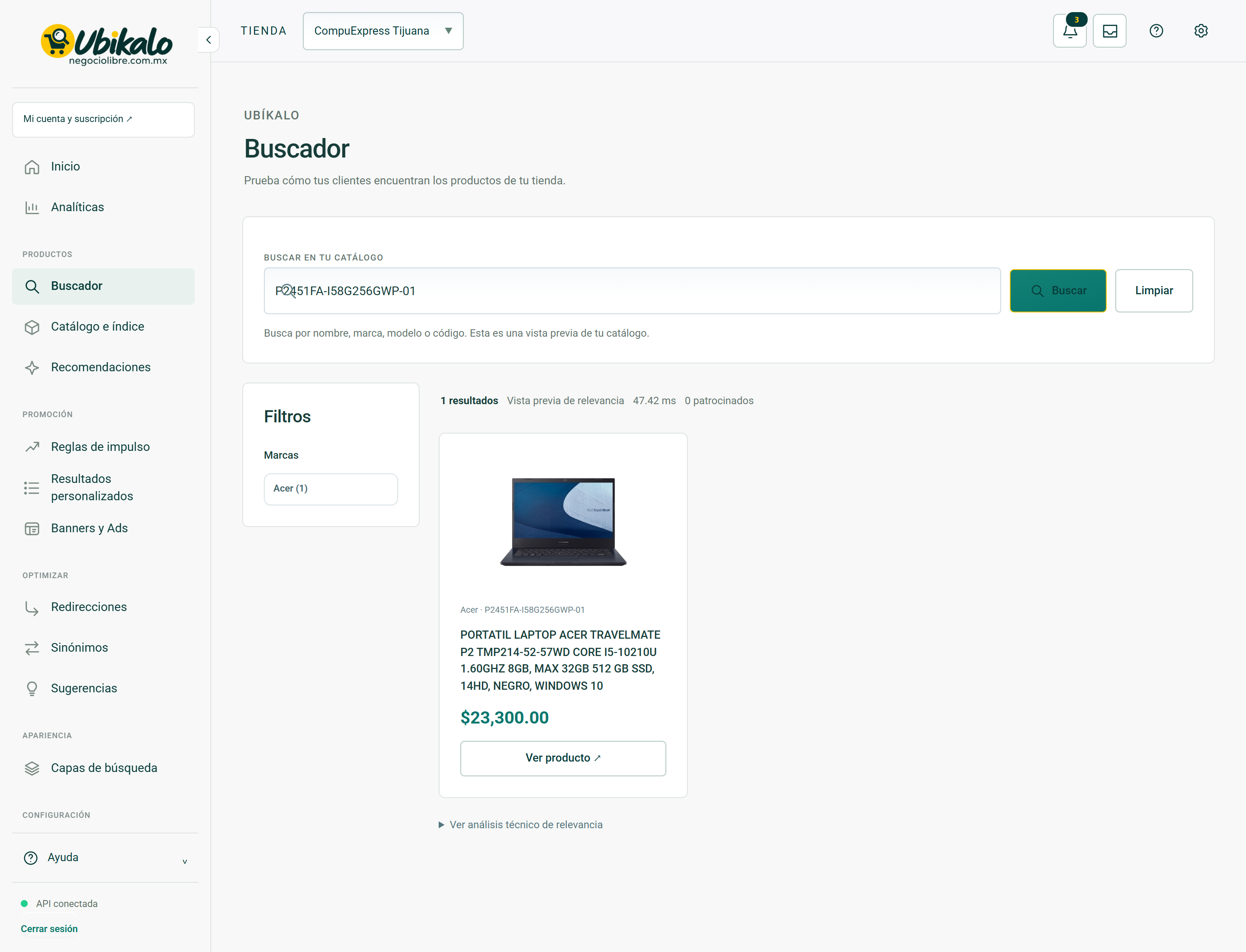
Prepare five tests: exact SKU, category, brand, budget and out-of-stock product. Write down the expected result using real products. Don’t activate campaigns to hide data or relevance issues.
How to verify it worked
The correct product appears, its link leads to the original listing and its price matches the store.
Real screens to guide you
These screenshots document system views with private fields hidden. In access and troubleshooting guides, they show the context you should be able to review after recovering your session; they do not show a simulated error or a sign-in form.
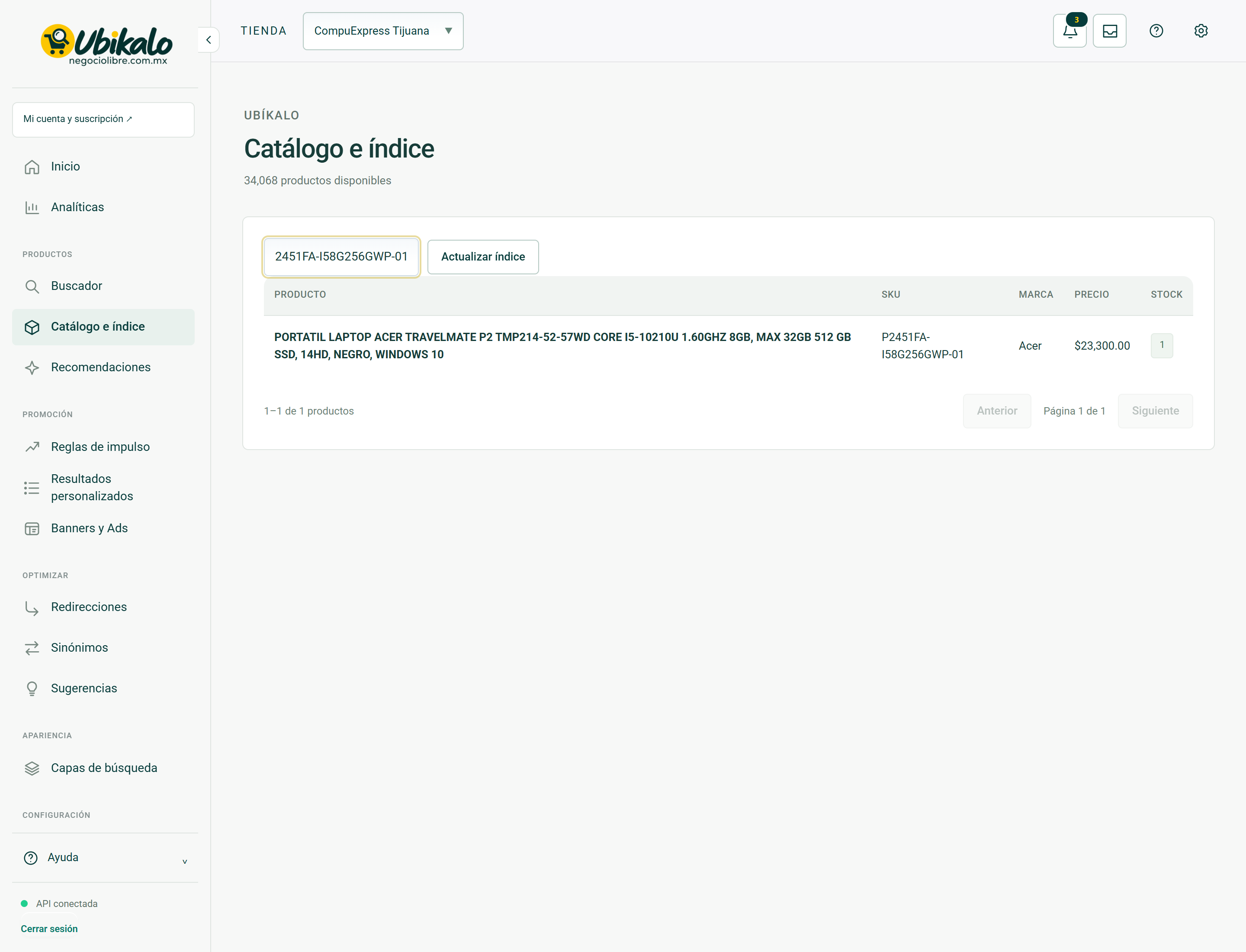
Consult Catalog and index controls →